IPTV guide
IPTV Smarters Pro: getting the real app and opening your login in it
IPTV Smarters Pro is the player many homes open their login in, because it runs on phones, tablets, Apple TV, Android TV and, with one extra step, Fire TV. It holds no channels: it shows whatever your login hands it. This guide covers where to find the real app, how to type the login, what each part of the screen does, the settings worth a look and the faults people meet most. We have no link with the app’s maker; we only supply the login it opens.
What IPTV Smarters Pro is, and what it is not
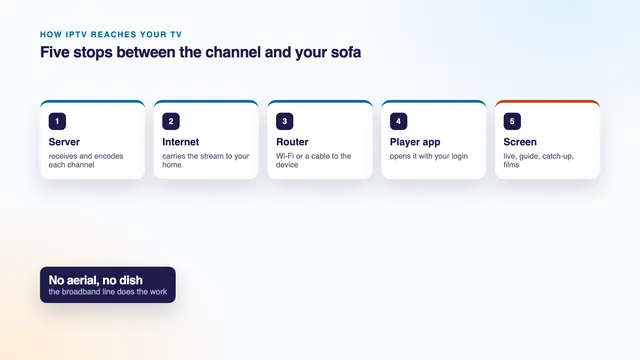
Smarters Pro is a player: a piece of software that signs in to a server, reads the channel list it receives, draws a programme guide and plays the video. It owns no channels, films or guide data. Until a login goes in, its screens are empty frames with nothing to put in them.
It comes from Tech Smarters Private Limited, a software company with no connection to us or to any seller of plans. The download costs nothing. Inside the app you may meet an offer called « Premium »: an optional extra sold by the developer, priced differently from one store to another. At the time of writing, a login opens and plays without it.
What fills the app is the login message we send 2 minutes after you pay. Six items sit in it. Three of them (username, password and server URL) make up what people call an Xtream Codes login; the others are an M3U playlist link, a link for the programme guide and your plan’s end date. Smarters Pro needs only the three. The line-by-line guide to Xtream Codes explains how a server reads each one.
Since the player and the plan are separate things, either can change without the other. Dislike the look of Smarters Pro and the same login opens in a different player; let the plan run out and the app stays on the device, ready for the next login.
In plain words
Player app
The software on your screen that signs in and plays the streams. The channels do not live in it.
Xtream Codes login
Three lines (username, password, server URL) that let a player fetch channels, films, series and the guide at once.
M3U link
One long web address pointing to a playlist file: every channel listed with its own stream address.
EPG
Electronic programme guide: what is on now, next and over the coming seven days.
VOD
Video on demand: the films and series you start whenever you choose.
Catch-up
Programmes already shown, kept for a few days on the channels that offer it.
Getting the real app on each screen
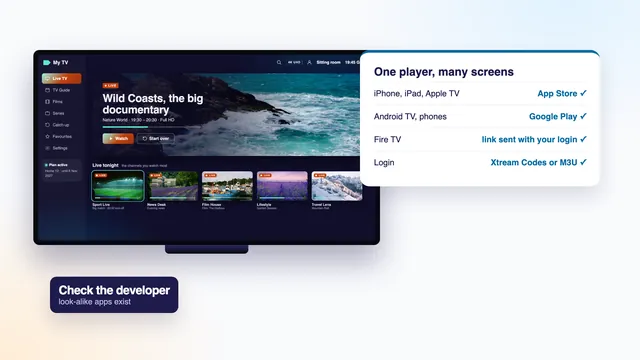
IPTV Smarters Pro is listed in the two large app stores. A store copy updates itself and has passed the store’s own checks before it appears, so begin there on every screen that has a store.
App Store: iPhone, iPad, Apple TV and Mac
On an iPhone or iPad, open the App Store, search for Smarters Pro and read the line under the name before you tap Get. On an Apple TV, search from the App Store app on the television; the microphone on the remote spares you some letters. A Mac with an Apple silicon chip finds it in the App Store on the Mac, which makes a laptop a handy place to see a login work before you start on the TV.
Google Play: Android phones, tablets and TVs
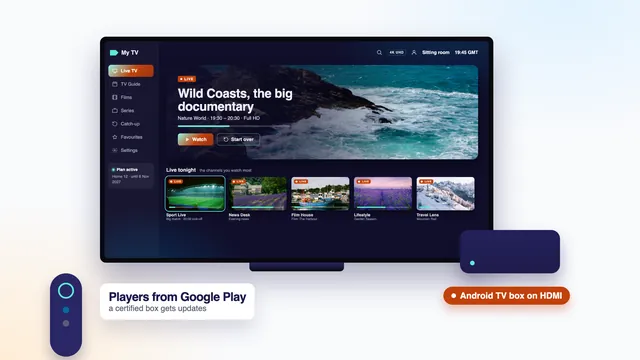
Android phones and tablets get the app from the Play Store. A television or box running Android TV or Google TV has its own Play Store in the apps row; say the name into the remote if it has a microphone button. If the store on a box cannot find the app at all, the box may be uncertified and missing the full store: the guide to IPTV for Android TV sets and boxes explains how to tell.
Other screens in the house
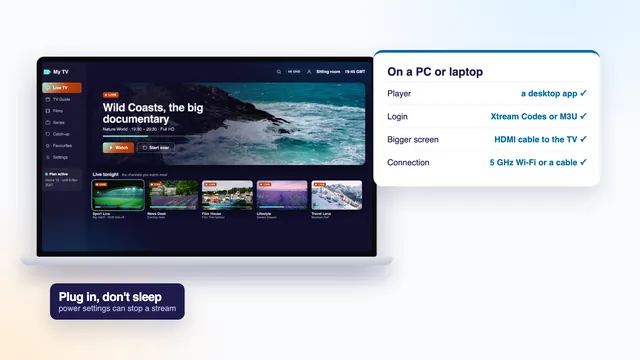
Samsung and LG televisions run their own stores, and whether Smarters Pro shows up there changes from model to model, and with the country picked when the set was first switched on. The setup page for every kind of screen lists players that take the same login when it is missing, and the guide to watching on a Windows PC or laptop covers desktop players.
| Screen | Where the app comes from | Worth knowing |
|---|---|---|
| iPhone and iPad | App Store | Read the developer line before you tap Get |
| Apple TV | App Store on the TV | The remote’s microphone saves typing in the search box |
| Mac with Apple silicon | App Store on the Mac | A big, easy screen for a first look at the login |
| Android phone or tablet | Google Play | Good for the kitchen or the garden; the Wi-Fi matters more than the phone |
| Android TV and Google TV | The Play Store on the set or box | Certified devices show the whole store |
| Fire TV stick or Cube | Not in the Amazon Appstore | Fetched by Downloader from the link in your login message |
| Samsung or LG TV | The TV maker’s own store | Varies with model and country |
Look-alike apps: check the developer’s name
A well-known name draws imitators. Type Smarters into a store and you may see apps with a near-identical icon, a title that adds or swaps one word, and another company behind them. Some are harmless, some are crammed with adverts, and a few want access to things a video player never touches: your contacts, where you are, the microphone.
The check takes five seconds. Under the app’s title, every store prints who publishes it; for the app in this guide that line should read Tech Smarters Private Limited. Any other name means back to the results list.
Fire TV: the app goes on with Downloader
Amazon’s sticks and the Fire TV Cube run Amazon’s own build of Android with Amazon’s own shop, and Smarters Pro is not on its shelves. The usual way round is Downloader, a small free app from AFTVnews that is in the Amazon Appstore and fetches the player for you.
- Search the Appstore for Downloader, check that AFTVnews is named as its publisher, and install it.
- Give Downloader permission to install unknown apps; that switch sits under Developer options, inside My Fire TV, in Settings.
- Developer options missing? Open About in that same My Fire TV menu and click the device’s name seven times, until a notice says you are now a developer. Step back once and the menu has appeared.
- Start Downloader and type the link that comes with your login message. It travels with the login rather than sitting on a public page, so that it reaches customers only and can be changed when needed.
- When the file has downloaded, choose Install, then Open. Downloader may then offer to delete the installer file; accept, the app itself stays.
- Tidy up: go back to Developer options and switch the unknown-apps permission off for Downloader until you need it again.
A long press on the new tile lets you shift it into the first row of the home screen, one press away from then on.
Buying a new stick? Look up the model first: certain recent Amazon models are built on Vega OS, a system limited to Appstore apps, so Downloader has no way to add Smarters Pro there. For a 4K set, choose among the Cube, the 4K Max and the Fire TV Stick 4K, each of which shows 4K HDR when a source offers it; Lite and older basic sticks go no higher than Full HD.
Adding your login: Xtream Codes or a playlist
On first launch, Smarters Pro shows a short menu of ways to sign in. Two of them concern you: « Login with Xtream Codes API » and « Load your playlist or file/URL ». Choose the first whenever you can.
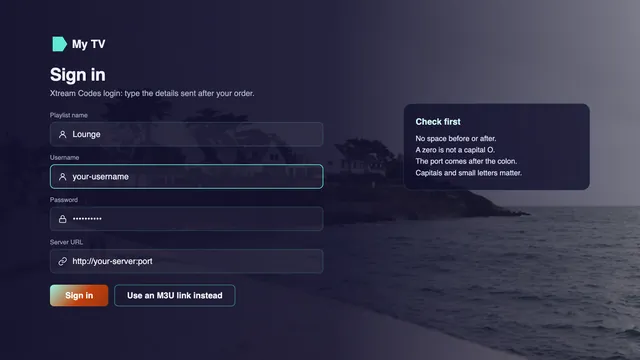
The Xtream Codes form, field by field
- Choose « Login with Xtream Codes API ».
- In the first field, give the profile a name only you will see, such as Front room or Upstairs. It is a label and plays no part in the login.
- Type the username and then the password exactly as the message shows them. Both are case-sensitive, so a capital letter is a different character.
- In the URL field, put the whole server address: the http:// at the start, the name in the middle and, if the message has one, the colon and port number at the end. Its shape is http://your-server:port.
- Press Add user, or the button that does the same job in your version. The app checks the details, then downloads the channel list, the films, the series and the guide; allow a minute or two for that first load on a slower line.
Most refusals come from tiny slips: a space carried along at the end of a copied line, the digit zero where the letter O belongs, or a small L in place of a capital i. On a phone, copy and paste each line from the message. On a TV, read the three fields back slowly before pressing the button.
When the playlist route makes sense
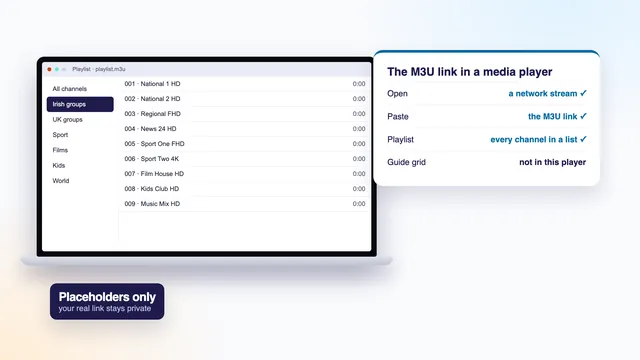
« Load your playlist or file/URL » takes the M3U link instead. Give it a name, choose the URL option and paste the link. It suits a phone, where pasting one long address beats typing three short ones.
The convenience has a cost: films, series, the guide and catch-up usually arrive more completely by the Xtream route, as the table shows.
| Route | What you type | What loads | Choose it when |
|---|---|---|---|
| Login with Xtream Codes API | Username, password, server URL | Live channels, films, series, the 7-day guide and catch-up, each in its own groups | Nearly always |
| Load your playlist or file/URL | The M3U link | The channel list, and films where the playlist carries them; the guide and catch-up vary | Pasting one link is easier, or you want a second way in for comparison |
Finding your way round the app
With the login in place, the home screen shows a few large tiles. Labels move about a little between versions and devices, but the plan of the house stays the same.
Live TV
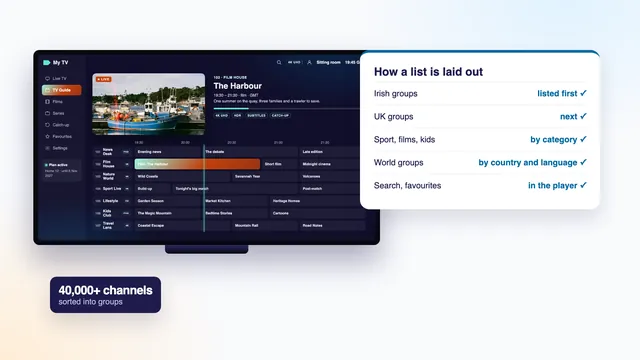
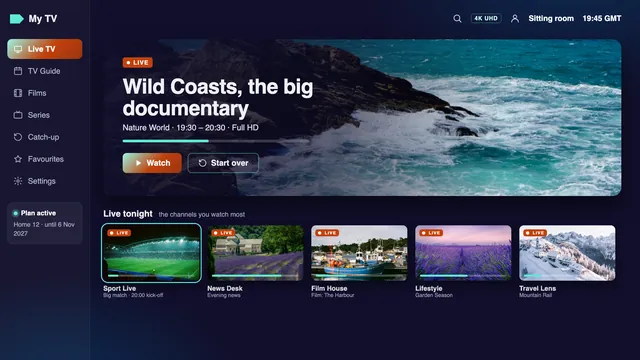
Down the left side run the channel groups. Ireland’s come first, from national and regional channels to Irish-language, news, sport and entertainment; the UK’s follow, then sport, films, children’s, documentaries and music, and finally groups for other countries, each sorted by language. Pick a group, then a channel, and a small preview starts; press select again for the full screen. With 40,000+ channels on offer, the search icon and a favourites group save a great deal of scrolling, and the IPTV channel list guide explains how to set favourites up.
Films and series
The films tile (Movies in the app’s own wording) and the series tile lead into 120,000 titles on demand, sorted by category. A title page gives the running time and a summary, and for a series the list of seasons. The app usually offers to resume where you stopped, so a film paused late at night picks up at the same scene the next evening.
Catch-up and the guide
A small marker beside a channel’s name shows that it keeps recordings of past programmes, and the catch-up tile gathers those channels. Pick one, then a day, then the programme, going back as far as seven days on most of them. The guide, often behind a TV guide or EPG button, sets out what is on now and next on every channel; it arrives with the Xtream login and runs on Irish time. The IPTV catch-up guide and the IPTV EPG guide with its time offset go into both in depth.
A user or account screen also shows the profile’s expiry date, which should match the end date printed in your login message; tell us if the two differ.
The settings worth changing
The settings page, behind the gear icon, is long, and most of it can stay untouched. Menu names differ slightly between versions, but these four solve real problems.
| Setting | What it changes | When to touch it |
|---|---|---|
| Stream format | How each channel is asked for: the default, MPEG-TS (.ts) or HLS (.m3u8) | One channel stutters or refuses to start while the others play |
| Player | Which engine plays the video: the app’s built-in player, or VLC if installed | Picture without sound, sound without picture, or a file the built-in player refuses |
| EPG time offset | Slides the whole guide forward or back by whole hours | Programmes show an hour early or late |
| Parental control | A PIN on the groups or categories you pick | Children use the TV, or a group should stay out of sight |
Stream format and player
Change one thing at a time. When a channel freezes, switch the stream format first and watch that channel for a few minutes; only then try the other player, because two changes at once hide which one helped. The built-in player opens channels faster. VLC, a separate free app from the same store, can be picked in the player setting and copes with some audio tracks and older file types the built-in one skips; the guide to opening the M3U link in VLC shows it used on its own.
EPG time offset
The guide is sent on Irish time: GMT through the winter, then IST (Irish Standard Time) between the clock changes at the end of March and the end of October. If the device’s clock is set to another zone, or the app reads it differently, every programme slips by exactly one hour. Put the device on Dublin time first; if the guide is still out, move the offset by one hour either way and reload it. When this guide was written, on 6 November 2026, Irish clocks were on GMT.
Parental control
Choose a four-digit PIN, then tick the groups to lock; each one then asks for the PIN before it opens. Keep the number somewhere safe: if it is forgotten, removing the profile and adding the login again is the usual way back.
Profiles, several screens and the limit of your plan
Smarters Pro can hold several logins side by side. Each one appears as a user on the list screen under the name you gave it, and switching between them takes a couple of presses.
Profiles never raise the number of screens that can play together; that number comes from the plan. With Home 3, Home 12 and Home 24 it is one, and with Home 12 Duo it is two. You may put the app on the TV, a phone and a tablet with the same login, provided no more than the allowed number are playing at the same moment.
Multi-Screen, the view that tiles two or four channels on one television, opens a separate stream for every tile, so with a single-screen plan only the first tile will normally play.
A login is for one household: used outside the home, or posted publicly, it can be suspended. A second room that watches at the same time is what Home 12 Duo exists for, at €79 for 12 months. Compare all of them on the four Home plans, or open the plans page for each plan’s monthly cost and end date.
On that last day access simply stops; nothing renews by itself. Ordering again later means a fresh login message with new details: add them as another user, check that a channel plays, then remove the old user. Favourites are usually kept per login, so allow a few minutes to mark them again.
When something goes wrong
Each symptom below has one or two usual causes. Start with the first fix in its row; it settles most cases.
| What you see | Usual cause | First fix |
|---|---|---|
| « Invalid login » or « authorisation failed » | A typing slip, a stray space, or the URL without http:// or its port | Retype the three lines from the message, slowly |
| An error mentioning 403 | The server usually refused the login: the end date has passed, or more screens are playing than the plan allows | Stop the other screen, check the end date, then message us |
| Login accepted, empty lists | The first download has not finished, or the line dropped during it | Wait a minute, close and reopen the app, then refresh |
| A blank guide | The guide data has not arrived yet | Use the guide’s install or refresh button and allow a few minutes |
| Programmes an hour out | The device’s time zone, or the offset | Set Dublin time, then the EPG time offset |
| Sound but a black picture | This device cannot decode that stream in the current player | Try the other player, then the other stream format |
| Freezing on busy evenings | A faint Wi-Fi signal, the crowded 2.4 GHz band, or the rush between about 19:00 and 23:00 | A cable, or the router’s 5 GHz band with the device nearby; the HD version of the channel |
| One channel dead, the rest fine | That source is off air for the moment | Try later, and tell us if it lasts |
| The app asks for money | The developer’s optional Premium | Close the offer: it is no part of your plan |
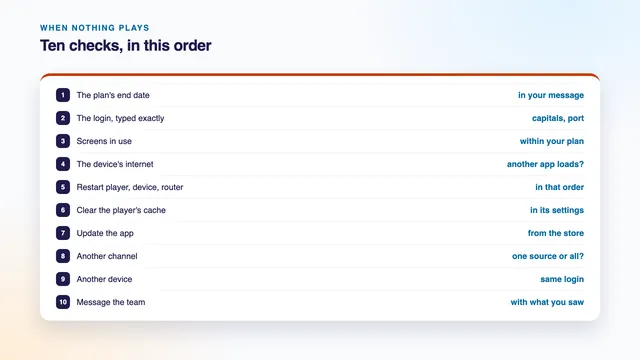
Still stuck? The checks to run when IPTV is not working go further, step by step. The team answers at any hour on WhatsApp or through the contact page, in English; a photo of the screen with the error saves a lot of back and forth.
Not a customer yet? Start with what an IPTV plan from us includes. Every Home plan opens the same 40,000+ channels and the same library of 120,000 titles, with the guide and catch-up; Home 12 is €49, paid once, which works out at about 13 cent a day over its 12 months.
Frequently asked questions
Is IPTV Smarters Pro free?
Downloading it costs nothing in the App Store or Google Play. Inside, the developer sells an optional « Premium » whose price changes from store to store; at the time of writing a login plays without it. Whatever you pay for Premium goes to the developer, not to us.
Does the app come with channels?
No. Smarters Pro stays empty until you add a login. The 40,000+ channels, the 120,000 films and series and the guide come from your plan and load once the username, password and server URL are in.
Why is it missing from the Amazon Appstore?
Its developer does not list it there. On Fire TV you add it through Downloader, typing the link that arrives in your login message. Some of Amazon’s newest sticks run Vega OS, which turns away apps from outside Amazon’s store, so look up the model before buying one.
Can the same login go on a phone and a TV?
Yes: install the app on each and enter the same three lines. With Home 3, Home 12 and Home 24, one device plays at any moment; Home 12 Duo allows two at once.
Xtream Codes or the playlist: which should I pick?
Xtream Codes, whenever you have the three lines. It brings films, series, the guide and catch-up in tidy groups. The playlist route is a fallback for when pasting one link is simpler.
Do I have to use Smarters Pro?
No. TiviMate, VLC, Kodi, IBO Player, Smart IPTV, XP IPTV and other compatible players open the same login. Smarters Pro is common because it runs on so many kinds of screen, not because it is required.