
Hardware decoding
Find the decoder option in the playback settings and pick hardware (sometimes HW). The device’s chip then handles HEVC (H.265), which 4K depends on. Switch to software only for a channel that gives sound over a black screen.
Setup
Here is how to set up IPTV on the TVs, sticks, phones and computers already in your home, taken in the order you will meet each piece: what the login message holds, which player suits each screen, the eight steps all players share, the programme guide on Irish time, six settings and the fixes for first-evening snags. Anything that belongs to one device only has its own guide, linked at the point you need it.
Your details
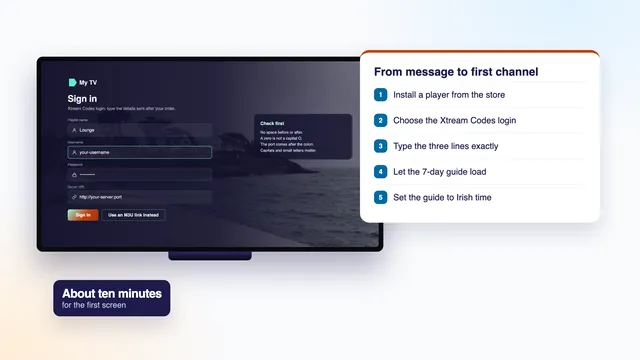
Everything a player asks for comes in one message, on WhatsApp or by email, 2 minutes or so after the payment clears. It runs to six lines, and once you know what each line is for, most of the work of learning how to set up IPTV is behind you.
Lines one to three travel as a set. Username, password and server URL: those three make up the Xtream Codes login, a format nearly every TV player understands; with it, the player pulls down the channels, a week of listings and the film and series library in a single pass. Use it wherever it is offered.
Lines four and five are web links. The M3U link is a playlist: one long address naming every channel, for players built around playlists, VLC and Kodi among them. The XMLTV link, often called the EPG link, holds the listings; a playlist player needs it entered on its own, whereas an Xtream login fetches the guide unprompted.
Line six is a date: the last day the login works.
The message, about 2 minutes after paying
Shown blurred. The genuine lines go to your phone or inbox and nowhere else.
| Line | Goes into | What trips people up |
|---|---|---|
| Username | The top field on the Xtream Codes screen | Capital letters entered as small ones, or a trailing space |
| Password | The field just below | 0 and O, or l and I, confused on a TV’s font |
| Server URL and port | The field called URL, server or portal | Dropping the http:// in front or the :port at the end |
| M3U link | The playlist box in VLC, Kodi, Smart IPTV and similar players | Copying only part of a long link |
| Guide link (XMLTV) | The EPG box, if the player has one | Adding it to an Xtream login, which already brings the guide |
| Valid until | A calendar entry or a phone reminder | Remembering it only when the screens go quiet |
The IPTV Xtream Codes guide looks at each field and at what the usual login errors mean, and the guide to the IPTV EPG deals with the listings link. Store the message safely: it unlocks your household’s access, so keep it out of group chats and public posts.
Players
| Players that take the login | Screen | Get the player from | Read next |
|---|---|---|---|
| IPTV Smarters Pro, TiviMate or VLC | A TV or box running Android TV or Google TV | Google Play | IPTV for Android TV |
| IPTV Smarters Pro or TiviMate | An Amazon Fire TV stick or Cube | Downloader (Amazon Appstore), which then opens the link we send with the login | IPTV Smarters Pro guide |
| Smart IPTV or IBO Player; Smarters Pro on certain models | A Samsung (Tizen) or LG (webOS) set | The store built into the TV | check your model with us |
| IPTV Smarters Pro | Apple TV, iPhone or iPad | Apple’s App Store, the only source on these devices | Smarters Pro on Apple devices |
| IPTV Smarters Pro or VLC | A phone or tablet running Android | Google Play | Smarters Pro on Android |
| VLC, or Kodi with its PVR IPTV Simple Client add-on | A Windows PC or laptop | Each app maker’s own website | IPTV for Windows |
| IPTV Smarters Pro or VLC | A Mac | The App Store for Smarters Pro (Macs with Apple silicon); VLC’s own website | IPTV VLC |
Think of a player as a reader. Until a login goes in it shows nothing at all, and none of the apps listed is ours: there is no app of ours, and no box or stick either. Most cost nothing to install, and some sell optional upgrades in the app; prices vary by store.
Samsung and LG sets work a little differently. Smart IPTV needs a one-off activation on each TV, after which the playlist is uploaded through the app’s website and linked to that TV’s MAC address. IBO Player ties itself to the TV by MAC address or by a device key; its maker charges for activation, yearly or once for life. Sets older than about 2018 may be left behind by player updates, in which case a streaming stick or an Android TV box in a free HDMI socket is simpler.
Before installing anything, three cautions. Copies with similar names sit in the stores, so look for Tech Smarters Private Limited as the developer of Smarters Pro. A few of Amazon’s newer sticks use Vega OS, and Vega OS will only install from the Appstore; check the model first. And ignore APK files handed round online, which can carry malware; the store copy is the safe one.
The first screen is the slow one. After that, how to set up IPTV on the next is the same story: a player from that screen’s store, the same three details, the same first load.
Step by step
Nearly every player and screen follows this order. The menus change from app to app; the sequence does not.
Use a speed-check app or web page on the TV, stick or box itself, preferably in the evening when the network is under most strain. Allow 5 Mb/s or so for HD, roughly double that for Full HD, and a steady 25 Mb/s for each screen that plays 4K.
An Ethernet cable from the router beats any wireless link. If a cable cannot reach, pick the router’s 5 GHz network over the 2.4 GHz one, and bring the device and router into the same room where possible.
Each screen has its store: the App Store for Apple devices, Google Play for Android TV and Google TV, and the built-in store on Samsung and LG sets. On a Fire TV stick, Downloader comes first, from the Appstore; switch on « Install unknown apps » for it in the Developer options menu (Settings › My Fire TV › Developer options) and open the link that came with your login. If that menu is missing, it appears after you press the device name 7 times in Settings › My Fire TV › About.
Read it from your phone as you type on the TV. On a phone or tablet player, copy and paste the lines instead and most typing slips disappear.
The wording varies: Xtream Codes, Xtream Codes API, or log in with Xtream. A player that wants a profile name will take any word, Home for instance. The M3U route is for players that lack Xtream.
Character for character. A capital letter must stay a capital in the username and in the password, and the server address keeps its http:// at the start and its port number after the colon. Check all three once more before you press the button.
On the first sign-in the player fetches 40,000+ channel entries, a 120,000-title library and seven days of listings. A slower box may take a minute or two over it; wait for the progress bar to finish.
Open a channel from the Irish groups; see whether the programme in the guide is the one actually on, by your phone’s clock; then replay something from last night on a channel with catch-up. If all three behave, that screen is ready.
With Home 12 Duo, run steps 2 to 8 again on the second screen using the same details. On single-screen plans the player may be on several devices, provided just one is playing.
Irish time
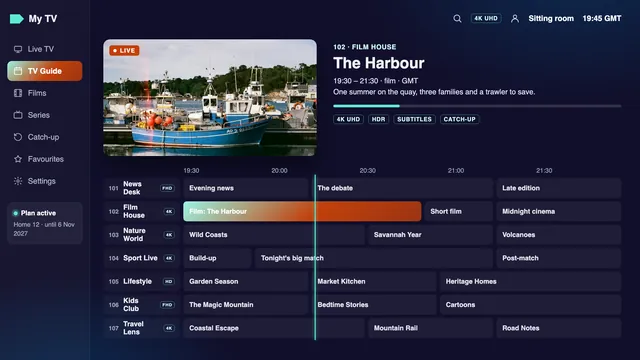
The listings keep Irish time. In winter that is GMT; for the stretch that opens on March’s last Sunday and closes on October’s it is IST (Irish Standard Time), an hour ahead. The player places those times against the clock of the device it runs on, so if the device is wrong, the guide is too.
As of 6 November 2026 Ireland keeps GMT. The next change comes on 28 March 2027, when the clocks spring forward into IST; then on 31 October 2027 they fall back into GMT. A device on automatic time with the Dublin time zone handles both alone.
If every programme is out by exactly one hour, look at the device before the player. In its date and time settings, select Dublin or Ireland and turn automatic time on, then close the player and open it again. Most cases end there.
Device right, listings still an hour adrift? Then use the player’s « EPG time offset » (on some players, EPG time shift). Pick a programme you can watch playing. Suppose the guide puts the evening news at 17:00, yet by your phone it is on at 18:00: the guide runs an hour early, so the offset becomes +1. Had it shown 19:00, you would set −1. Needing more than an hour of offset usually means the device thinks it is in another country.
Once you change anything, refresh the guide by hand from the player’s settings instead of waiting for its own schedule. The IPTV EPG guide shows where the offset sits in the common players; catch-up leans on the same times, as the IPTV catch-up guide explains.
| Irish clock | Starts | Ends |
|---|---|---|
| GMT (UTC+0) | 6 November 2026 | 28 March 2027 |
| IST (UTC+1) | 28 March 2027 | 31 October 2027 |
| GMT (UTC+0) | 31 October 2027 | 26 March 2028 |
A yearly plan bought today lives through both 28 March 2027 and 31 October 2027, so glance at the guide against a clock on the evening after each one, before a programme you meant to catch has come and gone.
Settings
Part of how to set up IPTV well is a few minutes in the settings menu. These six are worth changing on day one; the rest can wait.
Find the decoder option in the playback settings and pick hardware (sometimes HW). The device’s chip then handles HEVC (H.265), which 4K depends on. Switch to software only for a channel that gives sound over a black screen.
On a 4K television, set the device to output 4K through an HDMI 2.0 port or later. Apple TV has two switches worth turning on, « Match Frame Rate » as well as « Match Dynamic Range », in the Match Content menu under Settings › Video and Audio. HDR and 50-frame sport then reach the screen as broadcast.
Some players let you pick a stream format, usually MPEG-TS or HLS. Stay on the default unless one channel stutters while the rest are smooth; then try the other format for that channel.
Choose 12- or 24-hour times, whichever you read faster, and switch on automatic guide updates if the player offers them, so the week ahead is always loaded.
Irish groups head the list; the UK, sport, film, children’s, documentary, music and world groups follow. Star the channels you actually watch and hide whole groups no one in the house opens, and the remote has much less ground to cover.
Choose a PIN, then lock whichever groups or film categories children should stay out of. Keep a note of it: lose it and you may have to remove the player, install it again and retype the login.
Everything else can stay as it came until you have a reason to change it. The IPTV channel list guide explains how the groups are laid out and how to search them, and the Android TV guide covers the sport and 4K settings on those sets and boxes.
Fixes
| On screen | Most likely reason | Try this |
|---|---|---|
| « Invalid login » or similar | One character wrong in the username, password or server address | Retype from the message, watching capitals, the http:// and the port |
| An error code such as 403 | Usually the server refused the login: a typing slip, or a plan past its end date | Check the three lines and the date; if all is correct, write to the team |
| Channels work, guide is blank | Listings not finished loading, or an M3U setup with no XMLTV link | Give it a few minutes, refresh the guide from settings, or enter the XMLTV link |
| Guide times one hour wrong | The device’s clock: wrong zone, or automatic time off | Dublin plus automatic time first; the EPG time offset only after that |
| Freezes at night, smooth by day | Wi-Fi on the 2.4 GHz band, a congested line, or server load at the evening peak (roughly 19:00–23:00) | Cable or 5 GHz Wi-Fi, a speed check at that hour, or the channel’s Full HD version |
| 4K title black or jerky | Software decoding, an HDMI port below 2.0, or no HEVC support on the device | Turn hardware decoding on, move to a newer HDMI port, or play the Full HD version |
| Picture, but silence | Sound in a format your TV or soundbar does not support | Switch the audio output in the device’s settings to auto, or to stereo |
| The first screen stops when a second starts | Two streams at once on a one-screen plan | Watch one at a time, or choose Home 12 Duo when you next order |
| Neighbours cheer a goal before you see it | Live streams trail the broadcast by a few seconds, sometimes up to around half a minute | Nothing is broken; streamed live TV always runs a little behind |
| No catch-up on a particular channel | That channel has no archive | Replays exist only where a channel keeps them, usually for up to a week |
Not on the list? The IPTV not working guide takes the checks one at a time, from the login down to the screen. Still stuck after that: write to the team, naming the device and the player, the step where it went wrong, and attach a photo of what the screen shows. One photo usually answers a question or two before it is asked.
FAQ
A few minutes, normally, once the player is on the device: three details to enter and a first load to sit through. On a Fire TV stick, add a few minutes for Downloader, which has to be installed ahead of the player.
Only when the TV cannot run a current player, mostly the case with sets made before about 2018. Hardware adds no channels; the login is what opens them.
Put a player on it and enter the same details. Both screens can play together on Home 12 Duo; on the other plans, one at a time.
Xtream Codes whenever the player has it: three fields, with the guide and the library arriving alongside. The M3U link is for players with no Xtream option, and it wants the XMLTV link added for listings.
Usually the device: check that its time zone reads Dublin and automatic time is on, then restart the player. If the listings still disagree, adjust the player’s EPG time offset an hour at a time until programme and listing agree.
Yes. Over WhatsApp or email, the team will go through it with you, in English, whatever the hour. Tell them the device and the player, send a photo of the screen, and they will name the next button.
The players stay as they are. Only the details change, because a new order brings a new login, so each screen needs one round of typing.
With the steps above you know how to set up IPTV on any screen in the house; what is left is the plan. All four Home plans use the same login message and the same eight steps. Home 12 gives one screen twelve months for €49, paid once, and Home 12 Duo does the same for two.