IPTV guide
IPTV not working: ten checks to run, in order
IPTV not working is rarely a mystery: a few causes account for most cases, and you can usually find yours from the sofa in ten minutes. This guide sorts the problem by symptom, then takes you through ten checks, quickest and likeliest first, from the plan’s end date to the router, explains the messages players show, and ends with what to send the team when nothing has helped.
IPTV not working: first, name the symptom
Players fail in three ways, and each one points somewhere different. Take ten seconds to decide which you have:
- Nothing loads. The player will not log in, the channel list is empty, or every channel spins without starting. Look at the login, the plan and the connection.
- The picture stops. Channels start, then freeze or fall back to the list. Look at the line, the Wi-Fi and the device, and sometimes the evening peak.
- A message appears. A number such as 403, authorisation failed, no signal, or a guide with empty rows. Each has a usual meaning, set out further down.
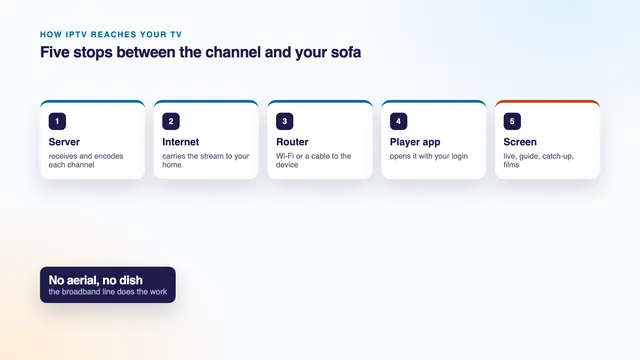
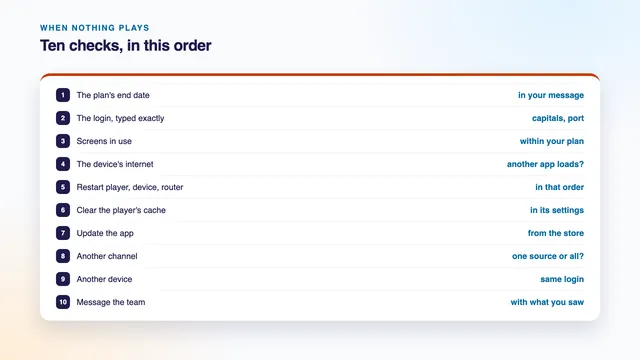
Note which channels, which device and what time. Those three facts make every check faster, and they are the first thing the team asks for. The path a channel travels is drawn on the home page under IPTV in four steps: login message, player, line, TV. Each check below looks at one link of that chain, arranged so the quick and likely ones come first:
- the plan’s end date;
- the login, entered exactly;
- too many screens at once;
- the device’s own internet;
- a restart of the player, the device and the router;
- the player’s cache;
- an update of the app;
- another channel, to tell one source from all of them;
- another device;
- what to send the team.
Checks 1 to 4: the plan, the login, the screens, the line
1. The plan’s end date
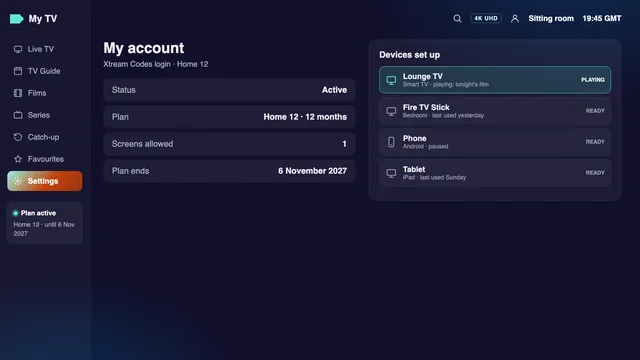
Every login message states an end date, and many players repeat it on an account or info screen. Home 12 ordered on 6 November 2026, for example, runs until 6 November 2027. Nothing renews by itself: on that date the login stops, and the player shows a refused login or an empty list.
Ordering again means a fresh order, and with it a fresh login, entered in the same apps in place of the old one. Delete the old playlist from the player as well, or it keeps knocking on a closed door.
2. The login, entered exactly
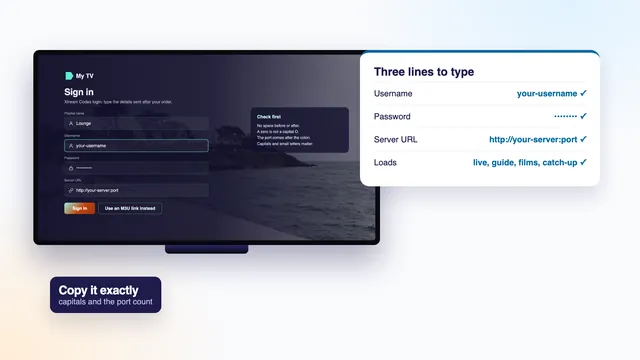
One wrong character is the commonest reason a fresh login fails. Compare each line with the message, letter by letter:
- the username and the password are case-sensitive, and phone keyboards like to capitalise the first letter;
- a zero and a capital O, or a small l and the figure 1, look alike in many fonts;
- the server URL keeps its
http://and its port, as inhttp://your-server:port, with no slash or word after it; - a space copied at the end of a line counts as a character.
Copying from the message beats retyping. The guide to the three Xtream Codes lines shows where each one goes in common players.
3. Too many screens at once
Home 3, Home 12 and Home 24 are single-screen plans; Home 12 Duo lets two play together. A screen is any device with the player open on a channel, including a phone in a pocket or a bedroom TV left on with nobody watching.
When the limit is reached, the newest screen is usually refused, or both pictures start and cut out after a few seconds. Close the player fully on the other devices, wait a minute and try again. If two rooms often watch at once, the Home plans include one for two screens.
4. The device’s own internet
Open a web page or a video on the same device, not on your phone. If that fails too, the home connection is at fault, not the player. If it works, run a speed check on the device in the room where you watch. A steady 5 Mb/s carries HD; Full HD wants twice that, and 4K about 25.
Look at the Wi-Fi strength too. A single bar on a stick tucked behind the TV is a frequent cause, and moving the router, joining the 5 GHz network or running a cable usually does more than any setting in the player.
Checks 5 to 7: restart, clear, update
5. Restart the player, the device and the router
Restart in this order, and try a channel after each step so you know which one did the trick:
- The player. Close it fully, not with the back button: Force stop in the app’s settings on Android TV and Fire TV, or swipe it away from the recent apps on a phone.
- The device. Switch the TV, stick or box off at the wall for thirty seconds. Standby is not a restart.
- The router. Unplug it for thirty seconds, then give it two or three minutes, until its lights settle.
6. Clear the player’s cache
Players keep a store of channel lists, guide data and pictures. When that store goes wrong, channels can refuse to start although the login is fine. Clearing it is safe and leaves the login in place.
- Fire TV: open Settings › Applications › Manage Installed Applications, select the player and press Clear cache.
- Android TV and Google TV: Settings › Apps, find the player under See all apps, then Clear cache.
- iPhone, iPad and Apple TV: there is no cache button; delete the app, reinstall it from the App Store and add the login again.
- Samsung and LG TVs: close the app and switch the set off at the wall for a minute. Many players also have a refresh or reload option for the playlist in their own settings.
Leave Clear data or Clear storage alone unless the team suggests it. It wipes the saved login, favourites and settings, and you will need the message to start again.
7. Update the app
An old version of a player can stop reading the channel list properly after a change on the server side. Open the device’s app store and update the player, and install any waiting system update for the TV or stick while you are there.
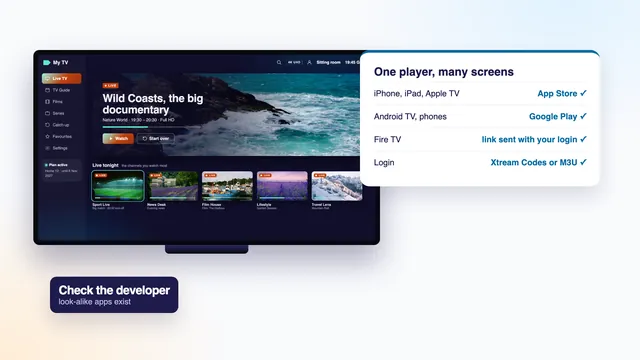
Update only from the store. An app with the same name and a different developer is not the same player, and the Smarters Pro guide shows how to tell the genuine one.
Checks 8 to 10: narrow it down, then tell us
8. Another channel
Play a channel from a different group, then a film from the library. If others play and one stays dark, that channel’s source is at fault, not your login or your line, and it is worth reporting by name and group. If nothing plays at all, go back to checks 1 to 4.
A 4K channel that fails while its HD version plays is a separate case: the device is probably not decoding HEVC (also written H.265), the compression most 4K uses.
9. Another device
Try the same login in a player on a phone or a computer, after closing the player on the first screen so the screen limit does not muddy the result. VLC is quick for this: paste the M3U link and press Play, as the VLC guide shows.
If the phone plays on the home Wi-Fi, the first device or its player is the problem. If it fails on Wi-Fi but plays on mobile data, look again at the router and the line (checks 4 and 5). If it fails everywhere, it is the login or our side, and time for check 10.
10. What to send the team
A message with these details is usually settled in one reply rather than five:
- your username (no need to put the password in the chat);
- the device and the player, with the app’s version if you can find it;
- what you see: a photo of the screen showing the message is ideal;
- which channels fail, by name and group, and whether films play;
- when it started, and whether it happens every evening or all day;
- the speed you measured on the device, and what checks 1 to 9 showed.
Help is in English, 24/7. You can message the team on WhatsApp from here, or write through the contact page.
Common messages and what they usually mean
Players word their errors differently, and one message can have several causes, so read these as the usual meaning.
A refused login: 403, authorisation failed, invalid details
A 403 usually means the server received the details and turned them down. The three usual reasons are a typing slip in the username or password (check 2), a plan past its end date (check 1), or more screens than the plan allows (check 3). A 401 reads the same way. A 404 usually means the server was found but something after its address was not, often a word or slash added after the port.
Connection timed out or unable to connect is different: the player never reached the server. That points to the device’s internet (check 4) or a mistyped server URL.
No signal or a black screen on one channel
When one channel shows no signal, an endless spinner or a black picture while its neighbours play, the source of that channel is down or has changed. Most come back by themselves within minutes or hours; if one you watch stays dark for a day, report it (check 10).
A black picture with sound, on every channel or only on 4K ones, is a decoding matter. In the player’s settings, switch the decoder between hardware and software, or choose another built-in player if the app offers one.
The guide is missing
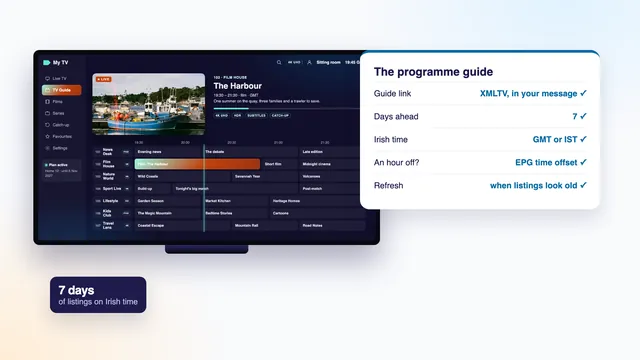
The programme guide (EPG, for electronic programme guide) loads apart from the channels and can lag a few minutes behind a new login. With the Xtream Codes login it arrives by itself; refresh it from the player’s settings if the grid stays blank. With the M3U link, the player also needs the guide link (XMLTV) from your message. A single channel marked no information simply has no guide data matched to it.
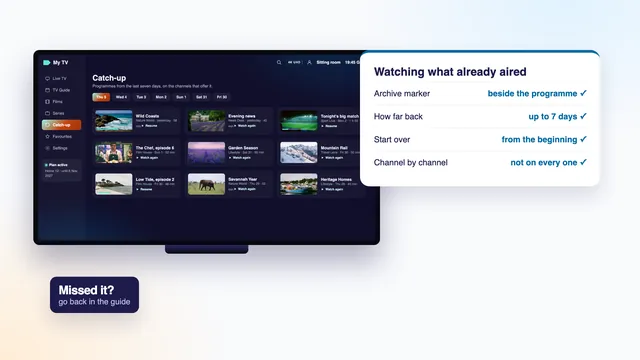
A guide an hour out is a clock setting. Irish time is GMT in winter and IST in summer, and on 6 November 2026 it is GMT. Set the device’s time zone to Dublin, or change the EPG time offset in the player; both are covered in the guide to the IPTV EPG. Catch-up, the archive of recent days, only appears on channels that keep one, usually up to seven days back, as the catch-up guide explains.
A picture but no sound
Start with the obvious: the TV volume, mute, and whether the sound is going to a soundbar that is switched off. If all that is fine and only some channels or films are silent, their audio is in a format the device or the soundbar does not decode, often Dolby Digital (AC-3).
Three fixes, in order: pick another audio track in the player, usually behind the info or options button while it plays; switch audio decoding to software in the player’s settings, if offered; then, in the device’s sound settings, change the output from passthrough or bitstream to PCM or stereo.
Symptoms, likely causes and fixes
| Symptom | Likely cause | Fix |
|---|---|---|
| Login refused on every device | End date passed, or a typing slip | Read the end date; paste each line again from the message |
| Worked yesterday, refused today | End date reached, or another screen in use | Check the end date; close the player on other devices |
| List loads, nothing plays | Screen limit reached, or a cache gone wrong | Close other screens; clear the cache (check 6) |
| One channel dark, others fine | That channel’s source is down | Wait, then report it by name and group |
| 4K versions fail, HD plays | The device cannot decode HEVC | Use HD or Full HD; check the device’s specification |
| Black picture, sound plays | Decoder setting | Switch between hardware and software decoding |
| Picture, no sound | Audio format the device does not decode | Another audio track; output set to PCM or stereo |
| Guide empty | Not loaded yet, or no guide link with M3U | Refresh the EPG; add the XMLTV link |
| Guide an hour out | Time zone or offset | Dublin time zone, or the EPG time offset |
| Catch-up empty | The channel keeps no archive | Choose a channel marked for catch-up, up to 7 days back |
| Frequent freezes after dark | Wi-Fi, a busy line or the evening peak | Cable or 5 GHz; pause downloads; see below |
| Player closes while loading | Old device short of memory | Update or reinstall; try a lighter player or another device |
When the picture keeps stopping
Not every case of IPTV not working is a dead screen. A picture that starts and then freezes every few minutes is usually a matter of steadiness, not of the login, and most of it is found at home: a weak Wi-Fi signal, a line shared with downloads and video calls, an older stick on the 2.4 GHz band, or a device straining at 4K. The rest is the evening rush on the servers, from about 19:00 until 23:00, heaviest at the weekend and when a big match is on; several servers share the load at those hours.
The quick moves: plug the TV device into the router or move it onto 5 GHz close by, hold off big downloads, take the speed reading on the device itself, and choose Full HD over 4K when the line sits close to the limit. The setup guide covers the line and Wi-Fi for every screen, the Android TV guide has the player settings for sport, and the guide to watching on a PC or laptop lists the sleep and power settings that cut a stream on a computer.
If the plan has ended, or nothing has ever played
When check 1 shows the end date has passed, the remedy is a new order: choose a length, pay once in euro, and the new login arrives about 2 minutes later. Home 12 is €49 for 12 months, and the IPTV yearly subscription page sets the four plans out by the month and the day.
If the new login has never put a picture on any of your screens, and the team could not get it going either, you can ask for your money back within 7 days of paying; the same goes for a login message that never reached you. Changing your mind is not covered, and neither is a 4K picture your line cannot carry when the speed it needs was stated before you paid. The refund policy has the full wording.
In plain words
End date
The last day of a plan, given in the login message. The plan does not roll on after it.
Xtream Codes login
The three lines that open the channels: username, password and server URL.
Screen
Any device playing a channel with your login at that moment. Plans allow one, or two with Home 12 Duo.
Cache
A player’s local store of lists, guide data and images. Clearing it keeps the login.
Source
Where one channel’s stream comes from. A source can go down while every other channel plays.
HTTP code
A three-figure number a server sends back: 403 usually means refused, 404 not found, codes starting with 5 a fault or overload on the server side.
HEVC
The compression most 4K uses, also written H.265. Older devices cannot decode it smoothly.
Frequently asked questions
My login worked yesterday and is refused today. Why?
Three usual reasons: the plan reached its end date, another screen is using the login, or a detail changed when the app was reinstalled. Read the end date in the message, close the player elsewhere, and paste the lines again.
Why does the picture stop at the same time every evening?
Evenings are when the home line is busiest and servers carry the most viewers, roughly 19:00 to 23:00. A cable or 5 GHz Wi-Fi, fewer downloads at once and Full HD instead of 4K usually steady it.
How do I know whether the fault is my device or your side?
Check 8 and check 9 tell you. If other channels and other devices play, the fault is that channel or that device. If nothing plays anywhere with a correct login before its end date, message the team.
Will clearing the cache delete my login?
No. Clearing the cache removes stored lists and images, and the login stays. Clear data or Clear storage is the one that wipes the login and favourites, so keep the message to hand if you use it.
Can I get a refund if IPTV is not working?
Yes, within 7 days of paying, in two cases: the login message never reached you, or no screen showed a picture even after the team stepped in. A change of heart, or a line short of what 4K needs when that was explained up front, is not covered.