IPTV guide
IPTV Xtream Codes: the three lines of your login and where each one goes
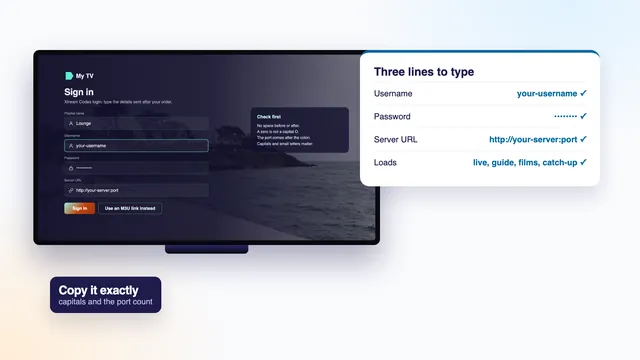
An IPTV Xtream Codes login is the shortest way to open a plan in a player app: three lines, typed once, after which the app fetches everything else from the server by itself. This guide takes each line in turn, shows where it goes in the players most homes use, explains why it loads far more than a playlist link does, and helps you read the error messages that appear when a single character is out of place.
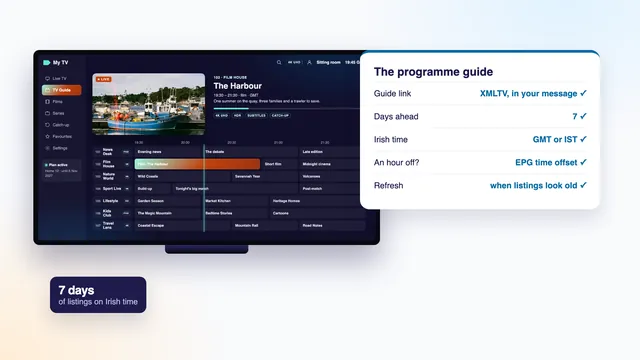
http://your-server:port. Typed into the Xtream Codes option of a player, they fill the app with live channels, films, series, catch-up and a 7-day programme guide. When a login fails, the cause is nearly always one character: a capital letter, a missing “http://” or a dropped port.What IPTV Xtream Codes means
The name first belonged to server software that handled logins for television sent over the internet. Player apps copied the way it asked for a login, and the label stuck. When a player offers “Xtream Codes”, “Xtream Codes API” or plain “Xtream” on its sign-in screen, it simply means: give me a server, a username and a password.
API is short for application programming interface: a fixed menu of questions an app may put to a server. A player logged in this way asks things such as “which channel groups exist?” or “what is on this channel tonight?”, and the server answers for your login alone, so the three lines are all the player needs to know about you.
Every plan we sell includes them, in a message that lands on WhatsApp or in your inbox about 2 minutes after you pay. Beside the three lines sit a playlist (M3U) link, a guide link and your plan’s end date. Wherever a player accepts the IPTV Xtream Codes method, start with it.
The three lines, one by one
| Line | Looks like | What it does | Where people slip |
|---|---|---|---|
| Username | your-username | Tells the server which plan is asking | A capital typed as a small letter, or a space carried over when copying |
| Password | your-password | Confirms it is really you asking | Letter O for zero, small l for capital I, the last character left off |
| Server URL | http://your-server:port | Points the player at the machine that holds your plan | “http://” missing or typed twice, the colon or the port dropped, text added after the port |
Why the port matters
The number after the colon is the port. Picture the server as a large building and the port as a door number: the address brings the player to the right street, the port to the right door. Without it the player tries a default door, which usually leads nowhere, and reports that the server cannot be reached.
Copy the URL exactly as your message shows it, with http:// or https:// at the front, whichever is written there, and type nothing after the port unless the message itself shows more.
Where each line goes in common players
Menu wording changes from app to app, and sometimes from one update to the next. The pattern does not: find the option that names Xtream Codes, then fill three boxes. The routes below were current at the time of writing, from the player most homes use down to the playlist-only ones.
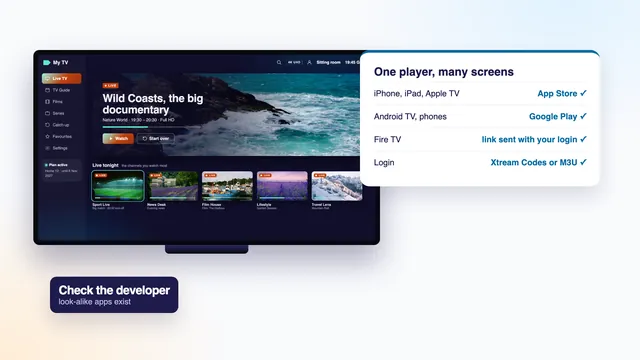
- IPTV Smarters Pro, on Apple and Android devices from phones up to TVs: Add user › the Xtream Codes option. “Any name” takes a label you choose; then come the username, the password and the URL.
- TiviMate, made for televisions and sticks running Android TV, Google TV or Fire TV: Add playlist › Xtream Codes, then the server address, your username and your password.
- IBO Player, found on Samsung, LG and other sets: the login is entered on a web page run by the app’s maker, together with the code the app shows on the TV (a MAC address or a device key). Pick the Xtream option on that page where one exists; if not, the M3U link goes there instead.
- Smart IPTV, for Samsung and LG: this app reads playlists only, sent from its website with the TV’s MAC address, so it takes the M3U link rather than the three lines. Activation is a one-time step for each television.
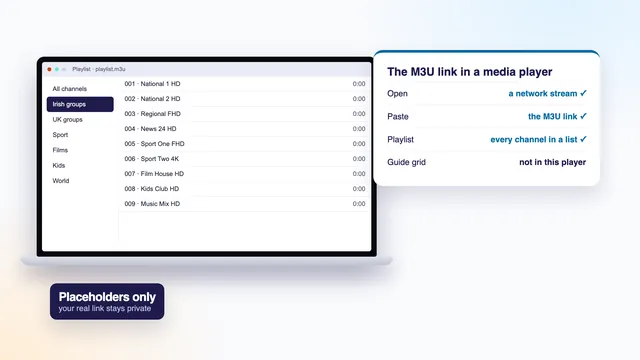
- VLC, and Kodi using the add-on called PVR IPTV Simple Client: both work from a playlist too. They open the M3U link, and Kodi also takes the guide link.
The name box and the port box
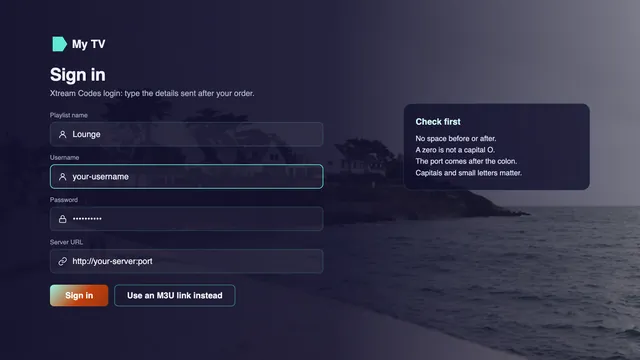
Many players open with a box called “Any name”, “Playlist name” or “Profile”. It is only a label for your own screen, so “Sitting room” or “Kitchen TV” does nicely; the server never reads it.
When a player has a separate port box, split the URL at the colon: http://your-server goes in the address box and the digits after the colon go in the port box. When there is only one box, type the whole URL with the colon and the port inside it.
Screen-by-screen help for the most common app is in the IPTV Smarters Pro guide, and TVs and boxes running Google’s TV software have their own guide to Android TV and Google TV. To go from the message to a playing channel on any kind of screen, follow how to set up IPTV, screen by screen.
Why one login brings channels, the guide, films and catch-up
An M3U link and an Xtream Codes login open the very same plan, yet the player handles them in opposite ways. The M3U link fetches a single long text file in one go, with every channel, its group, its logo and the address of its stream. Programme times need a second address, the guide (XMLTV) link, and films and series either turn up as more rows in that list or not at all, depending on the app.
With Xtream Codes the player holds a conversation with the server instead of swallowing one file. It asks for the live groups, then for the schedule of the channels you scroll past, then for film categories, series with their seasons, and the channels that keep past programmes. Each part arrives sorted and lands in its own section of the app.
What you notice on screen
- Separate sections: Live TV, Films (often labelled Movies), Series and Catch-up sit on their own tiles rather than in one column of thousands of names.
- A guide and a library in order: the programme grid fills in without a second link, and the 120,000 films and series are filed by category, episodes grouped by season.
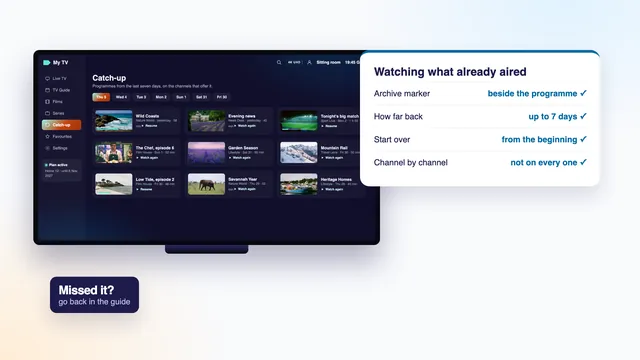
- Catch-up where a channel has it: the player learns which channels hold past programmes, and how many days back each one goes.
- The end date on screen: many players show your plan’s expiry date on an account or user-info screen, read straight from the server.
Lighter devices also cope better, since nothing forces the player to take in more than 40,000 channels at start-up. Keep the M3U link for apps that read only a playlist, VLC on a computer among them; the guide to opening the playlist in VLC covers that route. How the programme grid and the archive behave once they have loaded is explained in the guide to the IPTV EPG and the guide to watching past programmes on catch-up.
Typing the login with a TV remote
On a phone you can copy and paste. On a TV you mostly type with the arrow keys and an on-screen keyboard, which takes a few patient minutes, and almost every mistake falls into one of four traps.
Capital letters
Usernames and passwords are case-sensitive, so Ab and ab are two different logins. Plenty of TV keyboards put a capital on the first letter of a box without asking, or stay on capitals after one press of shift. Check the first character as soon as you type it, and use the eye icon beside the password box, where there is one, to see the password in plain text against the message.
The “http://” part
Some players already show http:// in the URL box, and typing it again gives http://http://, which fails. Others leave the box blank and may refuse an address without the prefix. Look at the box before you begin, so the start of the address appears once, exactly as your message writes it.
The colon and the port
The colon usually hides on the keyboard’s symbols page, behind a key marked “?123”, “&123” or similar. Place it straight after the server name with no space, then the port. Number keys sit close together on TV keyboards, so read the port back one digit at a time.
Spaces and look-alike characters
A space at the end of a box cannot be seen and is enough to sink a login. Look-alikes do the same: zero and capital O, the digit one and small l, capital I and small l. If the font in your message makes two characters hard to tell apart, ask the team rather than guess.
What login error messages usually mean
Error wording differs between players, and some show nothing but a number, so read this table as a guide to the likely cause rather than a dictionary. Whatever the wording, compare the three lines with your message first: that settles most IPTV Xtream Codes errors within a minute.
| What the player says, roughly | What it usually means | What to do |
|---|---|---|
| Invalid username or password, login failed, authentication error, or a number such as 401 or 403 | The server turned the details down: a typing slip, or a plan that has ended | Retype the username and password from the message, minding capitals and spaces; check the end date |
| Account expired, or the account shows as disabled | The end date has passed, or the login has been suspended | Order again for a fresh login; if the date is still ahead, message the team |
| Maximum connections reached, too many connections, or login already in use | More screens are playing than the plan allows, often a phone or a second TV left on a channel | Stop the other screen, close its app fully, wait a minute, then open the channel again |
| Server not responding, connection timed out, or cannot reach server | A wrong URL or port, a home connection that is down, or a server briefly too busy to answer | Check the URL and port, check that other apps reach the internet, restart the router and the device |
| A number in the 500s | Usually a short-lived fault on the server side | Wait a few minutes and try again; if it carries on, message the team |
| Signed in, but every list is empty | The categories did not finish loading, or the player hides them | Reload the profile from the player’s menu, or close and reopen the app |
The number of screens
Home 3, Home 12 and Home 24 allow a single screen at a time; Home 12 Duo allows two at once. You may save the login on every device in the house, because only the number playing together is counted. An app still open in another room, or a phone that kept a stream running in the background, is the usual reason a second screen is turned away.
If your details match the message, the end date is still ahead and other apps reach the internet, the cause is on our side or needs a closer look. Send the name of the player, the screen you use and the exact words of the error through the contact page. For trouble that starts after a working login, such as a frozen or black picture, the checks to run when IPTV is not working follow the rest of the path in order.
Keeping the login private
The three lines act like a house key. Whoever holds them can open your plan, use your screens and push you over the limit. The M3U and guide links carry the same username and password inside them, so give those links the same care.
- Keep the login message somewhere you can find it again, and never forward it to a group chat or post a photo of the screen it is on.
- Type the details only into player apps you installed yourself from your device’s app store. APK files of unknown origin can hide malware, however helpful the person who sent one.
- Ignore websites and apps that offer to “check”, “convert” or “repair” a login if you paste it into a form.
- Before you sell, give away or hand back a TV, stick or box, delete the profile from the player and clear the app’s data in the device settings.
- If you suspect the details have reached someone outside the house, let the team know and they will look at it with you.
After the end date: a new order, a new login
Plans never renew by themselves. Viewing ends on the date printed in your message, and many players then show the account as expired or disabled. There is nothing to cancel and no card on file.
Ordering again later is treated as a fresh order, with a fresh login from the team. Rather than adding it as a second profile next to the old one, open the player’s list of users or playlists and edit the existing profile with the new username, password and URL, or delete the old profile and add the new one. Two profiles with the same label is how people end up opening the one that no longer works.
Each of the four Home plans carries the same Xtream Codes login, M3U link and guide link; they differ only in months and screens. Home 12 runs 12 months for €49 and is the plan most homes take, while Home 12 Duo, at €79, is the one for two screens playing together. The cost per month and per day, and the date each plan would end if ordered today, are on the IPTV yearly subscription page.
The login’s terms in plain words
Xtream Codes
A login method made of three lines, server URL, username and password, for players that support it.
API
The set of requests a player is allowed to send a server, and the answers that come back.
Server URL
The web address of the server your plan runs on; it begins with “http://” and finishes with the port.
Port
The number after the colon; it sends the player to the right entry point on that server.
M3U link
A playlist address that fetches the whole channel list as one text file, for playlist-only apps.
Guide (XMLTV) link
The address of the programme-guide data. EPG stands for electronic programme guide.
VOD
Video on demand: films and series you start whenever you like, with no broadcast time.
MAC address
A code that identifies a TV or box on a network; some TV players tie a login to it.
Starting from scratch? The plain explanation of what IPTV is begins at the very start, and the home page shows how IPTV reaches your TV in four steps, from the login message to the picture.
Frequently asked questions
Is Xtream Codes an app I need to install?
No. Xtream Codes is a way of logging in, not an app. What you install is a player, for example IPTV Smarters Pro or TiviMate, and the three lines go into its Xtream Codes option.
Can I use the same IPTV Xtream Codes login on several devices?
Yes, you can save it on every screen in your home. With Home 3, Home 12 or Home 24, one screen plays at a time; with Home 12 Duo, two can play together.
Why does the login work on my phone but not on my TV?
Almost always a typing difference, because the phone’s copy was pasted while the TV’s was typed. Show the password in plain text and compare the three lines character by character, including the port and the “http://” part.
Should I use the M3U link or Xtream Codes?
Use Xtream Codes wherever the player offers it: three short boxes, and the guide, films, series and catch-up arrive with them. Keep the M3U link for playlist-only apps such as VLC or Kodi’s simple client.
Where can I see when my plan ends?
Your login message states the end date. Many players also show it on an account or user-info screen once you are signed in with Xtream Codes.
Do I get a new login if I order again?
Yes. A new order comes with a new username, password and URL, sent the same way as the first. Update the existing profile in each player instead of creating another next to it.