IPTV guide
IPTV for Windows: watching on a PC, a laptop or a Mac
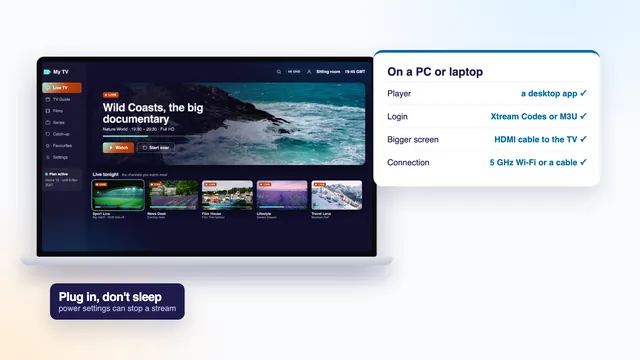
IPTV for Windows is the simplest way to watch on a computer you already own: a desktop player app, the login message we send after payment and a steady line are all it needs. This guide covers PCs and laptops on Windows 10 and 11, with a shorter part for a Mac: which players to install, where each line of the login goes, how to fill a second monitor or the television, and the laptop settings that quietly stop a stream.
IPTV for Windows: what the computer needs
Any PC or laptop on a current version of Windows 10 or Windows 11 can play live channels. The computer takes the place of a streaming stick: it pulls the stream over your home line and decodes it on its own screen. Besides the plan, the only possible cost is a small video add-on, explained in the section on HEVC.
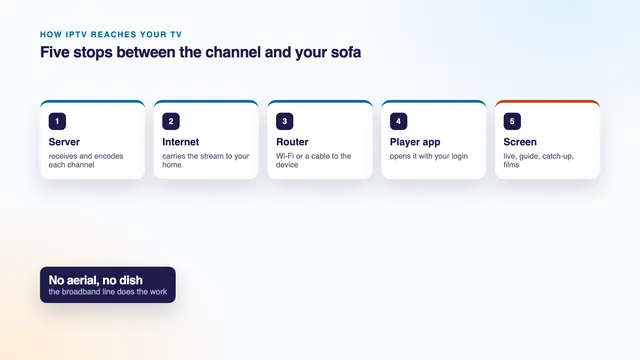
If the whole idea is new, the home page sets out how IPTV reaches a home in four short steps. On a computer, four things matter:
- A player app. Windows has nothing built in that opens a login. The players that do are listed in the next section.
- The login message. It comes 2 minutes or so after payment, on WhatsApp or by email. Inside: the username, password and server URL, a playlist link in M3U form, a separate link for the programme guide, and the date the plan ends.
- A steady line. Plan on 5 Mb/s or so per HD picture, double that for Full HD, and 25 Mb/s for 4K, read on the computer itself rather than on the router’s box.
- Graphics that handle HEVC, if you want 4K. HEVC, also written H.265, is the compression most 4K channels and films use, and it plays smoothly only when the graphics chip decodes it.
A computer counts as one screen, just like a television. Home 3, Home 12 and Home 24 are single-screen plans, so the laptop at the kitchen table and the TV in the sitting room cannot both be on a channel with them. Home 12 Duo covers two screens together for €79. The four Home plans are side by side on the home page, and the IPTV yearly subscription page breaks each one down by the month and the day.
Choosing a player on a PC
Three kinds of player work well on Windows. All of them cost nothing to install at the time of writing. Some sell extras from inside the app, and those prices vary by store.
Desktop IPTV players from the Microsoft Store
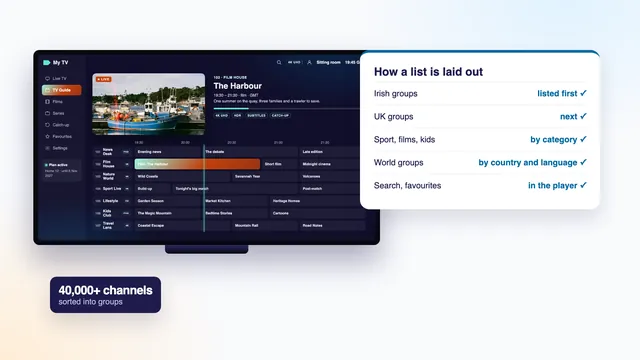
A search for IPTV in the Microsoft Store brings up several desktop apps built to take the Xtream Codes details or the M3U link. They resemble the players on a smart TV: channels grouped by country and category, a seven-day guide, a film and series library and, in many, catch-up (programmes from recent days). Choose one that has been updated recently, and read the publisher’s name before you press Get.
Some listings borrow the names of well-known TV players. IPTV Smarters Pro, for instance, comes from Tech Smarters Private Limited, whose own list of platforms is Android, Apple TV, iPhone and iPad, and Macs built on Apple silicon. A Windows listing under that name from another developer is not that company’s app, so read the developer line before you install it.
VLC
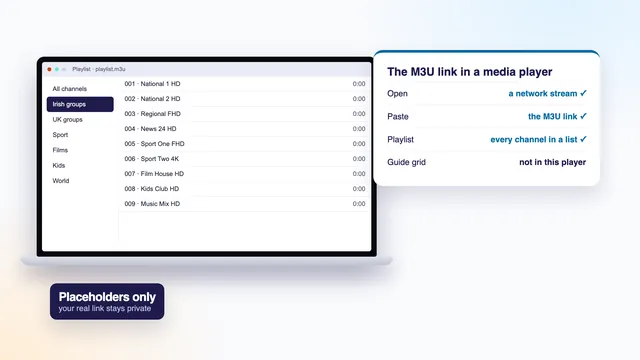
VLC is a free media player that opens the M3U link from a single menu, Media › Open Network Stream. It copes with nearly any format and is the quickest way to confirm a login works, but it shows no guide grid, offers no catch-up and slows down with very long lists. The step-by-step guide to VLC covers its menus on every device.
Kodi
Kodi is a free media centre for Windows. Live channels reach it through PVR IPTV Simple Client, an add-on that takes the M3U link and the guide link and builds a full TV guide out of the pair. Because the whole interface runs on arrow keys or a remote, Kodi suits a PC that lives under the television. Expect ten minutes of setup rather than two.
And a web browser?
Pasting the M3U link into the address bar of a browser plays nothing: the browser saves the playlist as a text file or prints its lines on screen. Watching inside a browser would need a web player built for the purpose, and we do not publish one, so on a PC the route is an installed app. Even a PC in S mode, which installs from the Microsoft Store only, is covered: VLC and Kodi are listed there as well.
| Player | Where it comes from | Login it takes | Programme guide | Catch-up | Suits |
|---|---|---|---|---|---|
| Desktop IPTV player | Microsoft Store | Xtream Codes or M3U link | Seven-day grid in most | In many, on channels that offer it | Everyday viewing on the PC |
| VLC | Microsoft Store or its developer’s site | M3U link only | None | None | Checking a login, one channel at a time |
| Kodi with PVR IPTV Simple Client | Microsoft Store or its developer’s site | M3U link plus guide link | Full TV guide | Limited, depends on settings | A PC wired to the TV |
| IPTV Smarters Pro | Mac App Store (Apple silicon only) | Xtream Codes or M3U link | Seven-day grid | On channels that offer it | A Mac |
| A browser on its own | Already on the PC | Cannot open the link | — | — | Not a player |
Adding your login on Windows
The login message offers two ways in, and most desktop players show both on their first screen. Use one, not both, or every channel appears twice.
With the Xtream Codes login
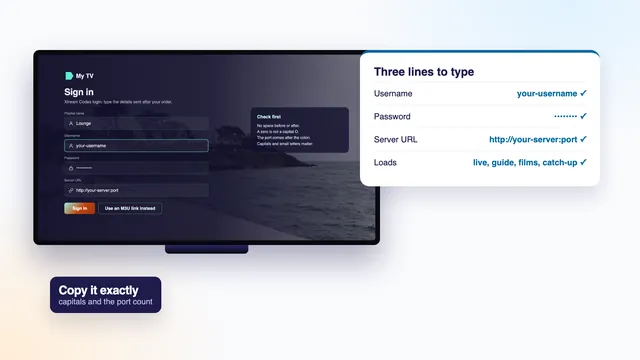
Xtream Codes is a login format in three parts, username, password and server URL. Pick the option the player calls Xtream Codes, Xtream API or login with username, then fill in:
- A playlist name. Anything you like; it only labels the entry on this PC.
- The username and the password, exactly as written in the message. Both are case-sensitive.
- The server URL, which looks like
http://your-server:port. Thehttp://part and the number after the colon both belong to it; nothing comes after that number.
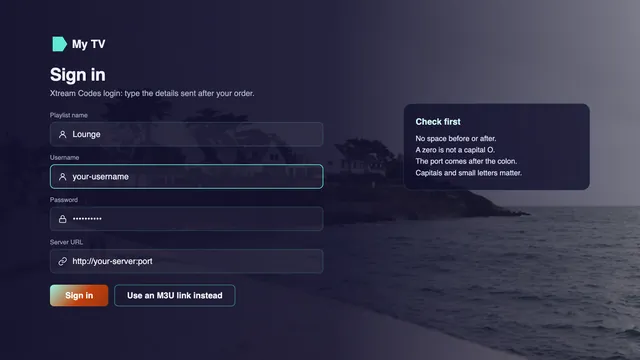
The player then fetches the groups, the guide and the library. The first load takes anything from a few seconds to a couple of minutes, depending on the PC. Prefer this route when you have the choice: the guide comes in by itself and catch-up appears on channels that keep an archive. The guide to the three Xtream Codes lines explains each one and the errors a typo causes.
With the M3U link
An M3U link is one web address that returns a text list of every channel. In your message it starts with the server address and ends in type=m3u_plus, with your username and password in between.
Paste it where the player asks for a playlist URL. If the player has a guide or EPG field, paste the guide link there too: EPG stands for electronic programme guide, and the link in your message is in a format called XMLTV. Leave it out and the channels still play, with an empty grid.
Copy and paste rather than retype
Keying in a long link by hand is where most first-evening trouble starts. Open the message on the PC itself, in WhatsApp’s desktop app or web version or in your mail program, and paste each line, minus any space picked up at the end.
Kodi, step by step
- Install Kodi and open Add-ons, then My add-ons or Install from repository, then PVR clients.
- Choose PVR IPTV Simple Client, enable it and open Configure.
- In the General part, choose Remote path (Internet address) as the location, then put the M3U link in the URL box.
- In the EPG part, choose the remote path again and put the guide link in its box.
- Close the settings, restart Kodi and open TV from the main menu. Labels move a little between Kodi versions, but the two links always go in these two places.
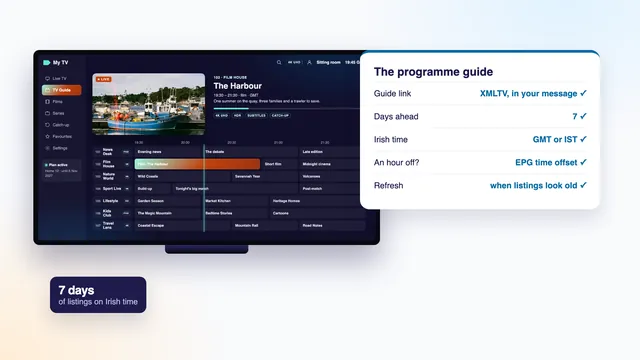
The guide runs on Irish time: GMT in winter, IST (Irish Standard Time) in summer, and GMT on the day this guide was updated. If the grid looks an hour out, set Windows to (UTC+00:00) Dublin, Edinburgh, Lisbon, London under Settings › Time & language › Date & time; the programme guide explainer covers the player’s own offset setting.
Full screen, a second monitor or the television
Full screen
In most players a double-click on the picture fills the screen and the Esc key brings the window back. In VLC the F key does the same; in Kodi the backslash key switches between a window and the whole display.
A second monitor
Windows key + P opens the four display choices: PC screen only, Duplicate, Extend and Second screen only. Extend is the useful one here. Drag the player onto the second monitor, then go full screen: the picture fills the screen the window was on, and the main monitor stays free for mail or browsing. VLC also lets you pick, in its video preferences, which display its full screen uses.
On the TV with an HDMI cable
A cable from the laptop to the television is the steadiest route to a big picture. Plug it in, choose that HDMI input with the TV remote, then press Windows key + P: Duplicate mirrors the laptop, Second screen only sends everything to the TV. If the sound stays on the laptop’s speakers, click the speaker icon in the taskbar and pick the TV as output.
Slim laptops often have USB-C instead of a full-size HDMI socket. A USB-C to HDMI adapter works when that port carries video, which the manual or a small symbol by the port confirms. For 4K on the TV, every link in the chain (laptop output, adapter, cable and TV input) must handle 4K at 60 frames per second, which in practice means HDMI 2.0 or newer.
Casting without a cable
Windows can mirror its screen to a TV or adapter that accepts wireless display: open quick settings and choose Cast, or press Windows key + K, then pick the TV. It works, but the stream now crosses the Wi-Fi twice, router to laptop and laptop to TV, so fast sport can stutter or lose sharpness. When the TV has a player app of its own, or a stick in its HDMI port, logging in there is usually smoother than mirroring a laptop, and it is still one screen.
Laptop Wi-Fi, Ethernet and the settings that cut a stream
Wi-Fi or a cable
Laptop Wi-Fi copes with browsing, which comes in bursts; a live channel wants an even flow for hours, and the small aerials behind the screen weaken through every wall. Sit within sight of the router on its 5 GHz network, or plug in a cable.
Many thin laptops have no Ethernet socket. A USB to Ethernet adapter costs little and turns a spare USB port into one; once the cable is in, Windows prefers it to Wi-Fi without being asked.
Measure the speed on the laptop, in the room where you watch, with a speed check in the browser. What counts is a figure that holds for a minute, not a single peak, and it should clear the line needs listed near the start of this guide.
Sleep, lid and power settings
Of everything in IPTV for Windows, the power settings are the part most often missed. Players ask Windows to keep the display awake while a channel plays. A paused channel, a guide left open or a list still loading does not, and a laptop that drifts into sleep drops the stream. Check these once:
- Windows 11: Settings › System › Power & battery, then the screen and sleep timeouts. When plugged in, set sleep to Never or to a long delay.
- Windows 10: Settings › System › Power & sleep holds the same two settings.
- The lid: Control Panel › Power Options › Choose what closing the lid does. Pick Do nothing when plugged in, so the laptop keeps playing on the TV with its lid shut.
- Battery or energy saver holds back the processor and can make 4K stutter. Run on the charger for a film or a match.
- The Wi-Fi adapter: in Device Manager, open Network adapters, then your Wi-Fi adapter, and on its Power Management tab untick the box that lets the computer switch it off to save power.
HEVC and the graphics chip
Decoding is the work of turning the compressed stream back into pictures. A graphics chip (GPU) has a circuit built for it that sips power; the main processor can do the same job, but it runs hot and drops frames on 4K. HD and Full HD channels mostly use the older H.264 format, which any PC from the last decade decodes in hardware. 4K channels and films usually come in HEVC, which needs a more recent graphics chip.
The HEVC add-on for Windows
Players that lean on Windows' own video tools, which includes many Store apps, need the HEVC Video Extensions to play HEVC. Plenty of PCs ship with them. If yours does not, the Microsoft Store sells them for a small one-off fee at the time of writing. VLC and Kodi bring their own decoders and do without.
Switching hardware decoding on
- VLC: open Tools › Preferences, then Input / Codecs, and choose Automatic for Hardware-accelerated decoding.
- Kodi: Settings › Player › Videos, with the DXVA2 hardware acceleration switch left on. Raise the settings level to Advanced if you cannot see it.
- Store players: look for a decoder choice in the player’s settings and pick hardware.
Is the graphics chip doing the work?
Open Task Manager with Ctrl + Shift + Esc, go to Performance and select the GPU. While a 4K title plays, its Video Decode graph should rise. If that graph stays flat and the CPU climbs instead, the chip is not handling HEVC: choose the Full HD version of the channel or film, or keep 4K for a TV device built for it.
A 4K picture also needs a 4K screen. On a Full HD laptop panel it looks no sharper than Full HD and eats more of the line, so pick HD or Full HD unless the PC feeds a 4K television or monitor.
On a Mac
Most of IPTV for Windows carries over to a Mac under different names. On a Mac with Apple silicon, IPTV Smarters Pro is in the Mac App Store: take the copy published by Tech Smarters Private Limited, choose the Xtream Codes login and enter the three lines from your message. Our IPTV Smarters Pro guide walks through its settings. VLC and Kodi both have Mac versions as well; in VLC the command is File › Open Network. On an older Intel Mac, those two are the dependable choices.
For the television, use an HDMI cable or a USB-C adapter as on a PC, or mirror the screen to an Apple TV or an AirPlay television from Screen Mirroring in Control Centre. Display and sleep timings sit in System Settings under Lock Screen and Battery, or Energy on a desktop Mac. Macs with Apple silicon decode HEVC in hardware, so 4K plays smoothly whenever the line keeps up.
In plain words, and where to go next
Xtream Codes
A login of three lines: username, password and server URL. A player that accepts it loads the channels, the guide and the library on its own.
M3U link
One web address that returns the whole channel list as a text file, for players that take no Xtream login.
EPG
Electronic programme guide: what is on now and over the next seven days, on Irish time, from its own XMLTV link.
Catch-up
Programmes from recent days, usually up to seven, on the channels that keep an archive.
VOD
Video on demand: the 120,000 titles of the film and series library, played whenever you choose.
HEVC (H.265)
A compression format that needs about half the data of H.264 for the same picture. Most 4K uses it.
Hardware decoding
The graphics chip turns the stream into pictures instead of the processor: cooler, quieter, smoother.
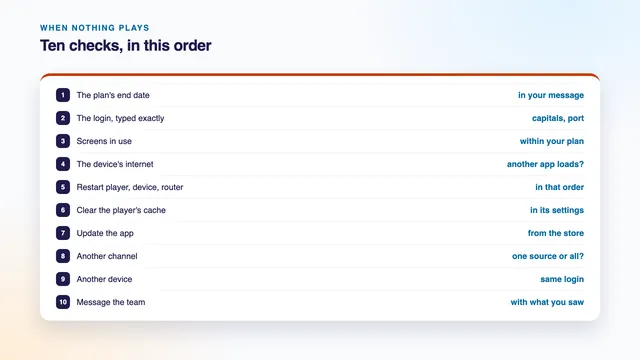
Put together, IPTV for Windows comes down to a well-chosen player, a login pasted rather than typed, and a laptop told not to sleep. For every other screen in the house, the setup guide goes device by device. If a player refuses the login or a channel stays dark, the list of checks for a player that will not play runs through them in order, and the team answers 24/7 through the contact page.
Frequently asked questions
Is there an IPTV player built into Windows?
No. Windows has an app for films stored on the computer, but nothing that opens a login. Install a desktop player from the Microsoft Store, or VLC or Kodi; each takes a couple of minutes.
Can I watch on the laptop and the TV at the same time?
Only on a two-screen plan. Home 12 Duo costs €79 for a year with both screens live together. The other three plans are single-screen, and a laptop counts as a screen like any TV.
Why does the picture stop when I leave the laptop alone?
Usually Windows is putting it to sleep or switching off the Wi-Fi adapter to save power. Set sleep to Never when plugged in, choose Do nothing for the lid, and untick power saving on the Wi-Fi adapter in Device Manager.
Do I need a powerful PC?
Not for HD or Full HD: almost any PC from recent years plays them. 4K needs a graphics chip that decodes HEVC, a 4K screen to show it on, and about 25 Mb/s of steady line.
Can I use the same login on a Mac and a Windows PC?
Yes. Any compatible player on any device in the household accepts it. With a single-screen plan, close the player on one computer before you open it on the other.