IPTV guide
IPTV for Android TV: players, the login and the settings that matter
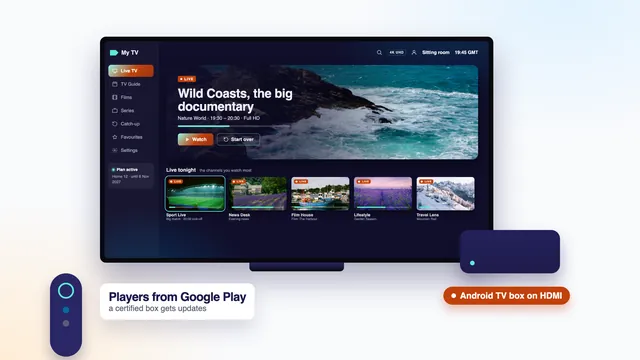
IPTV for Android TV comes down to a player app from Google Play opening your login on a television, or on a box plugged into one, that runs Android TV or Google TV. The hardware matters more here than on a phone: certification decides which apps you can install, the decoder decides whether 4K plays, and a few display settings decide whether a match looks smooth. This guide takes them in that order and sets the players side by side.
IPTV for Android TV: the sets and boxes it runs on
Android TV is Google’s system for televisions. Google TV is its newer face: the same system underneath, with a home screen built round suggestions and a profile picture in one corner. Both take their apps from Google Play, and every step in this guide applies to either.
It reaches homes in two shapes. Plenty of televisions from several makers have it built in, so the player installs on the set itself. Other homes plug a small box or stick into a spare HDMI socket, which hands an older or non-Android TV the same apps. To see which system yours runs, open Settings and look for an About page; it names the Android TV OS version.
Amazon’s Fire TV devices are built on Android as well, but they have their own store and menus, so these steps only partly fit them. The Fire TV part of the Smarters Pro guide explains how a player goes on there.
Certified and uncertified boxes
A box is certified when Google has approved it to carry Android TV or Google TV. Certification brings the full Google Play store, regular security updates and apps designed for a remote. Boxes sold online as IPTV boxes are usually Android boxes, and many are not certified: they run an older phone version of Android stretched across a TV screen, with a patchy store and no updates once sold.
Two checks tell them apart before you trust one with your login. The home screen should say Android TV or Google TV, and the Play Store should open in a layout made for television. On many devices, the Play Store’s own settings also show a Play Protect certification line, where « certified » is the word to look for.
Whichever box you choose, it adds nothing to what you can watch. The channels, films and guide all come from the login, so a box advertised with channels already inside offers nothing a login does not, and leaves you guessing who is behind them.
When comparing boxes, a handful of specification lines matter for television: a chip that decodes HEVC in hardware, 4K output at 60 Hz, 2 GB of memory or more, a socket for a network cable and Wi-Fi on the 5 GHz band. Core counts, gigahertz figures and the number of USB ports count for far less.
In plain words
Android TV
Google’s system for televisions and TV boxes, with Google Play as its store.
Google TV
A newer home screen on top of Android TV: the same apps, a different look.
Certified box
A box Google has approved, so it gets the full store and security updates.
APK
An Android installer file. Store apps use one out of sight; loose ones from forums are the risky kind.
HEVC (H.265)
A compression format that squeezes 4K into a home line; it needs a hardware decoder to play smoothly.
Frame-rate matching
A setting that lets the box switch the TV to the rate of the programme, such as 50 frames for sport.
Xtream Codes and M3U
The two forms of your login: three lines (username, password, server URL), or one playlist link.
The players in Google Play
Four players cover nearly every Android TV home. All of them install from Google Play, which keeps them updated and screened by the store.
IPTV Smarters Pro
The all-rounder, from Tech Smarters Private Limited. It accepts the Xtream Codes login, puts live channels, films and series behind their own tiles, loads the guide and opens catch-up on the channels that record their past programmes. It is free to install, with an optional paid Premium from its developer. The guide to Smarters Pro menus and settings walks through it screen by screen.
TiviMate
Built for television screens alone, TiviMate runs on Android TV and Fire TV. Its strong point is the guide: a grid of channels against hours that you steer with the arrow keys, much like the guide on a satellite or cable box. It installs free and sells premium options on top, at a price its developer sets, so we quote none. To add your details, choose Xtream Codes when it asks what kind of playlist you have.
VLC
Many people know VLC from their computer; it also comes in an Android TV edition. Given the M3U link, it shows the channels as a bare list, without a guide grid or catch-up: a fast way to find out whether streams play on that box at all. The IPTV VLC guide covers it on every device.
Kodi with PVR IPTV Simple Client
A free media centre, Kodi grows through add-ons. For live television it needs « PVR IPTV Simple Client », found among the PVR clients in Kodi’s add-on list. Open the add-on’s configuration, fill in the M3U link and the guide (XMLTV) link from your message, then enable it; Kodi’s home screen gains a TV entry holding the channels and their guide.
Kodi rewards patience: more settings, more ways to arrange things and a slower start. If you simply want to watch tonight, either of the first two gets you there sooner.
Four players side by side
Here are the four as they stood at the time of writing. Each store sets its own prices and features change between versions, so read the listing on the TV before paying for anything.
| Player | Login it takes | Programme guide | Catch-up | Cost | Suits |
|---|---|---|---|---|---|
| IPTV Smarters Pro | Xtream Codes or M3U | Yes, loads with the Xtream login | Yes, on channels with an archive | Free; optional Premium inside the app | Homes wanting one app on the TV and the phones |
| TiviMate | Xtream Codes or M3U | A full grid of channels and hours | Yes; some extras need the premium options | Free; paid premium options | Long evenings with the guide and the remote |
| VLC | M3U link | None | No | Free | A quick look at whether streams play |
| Kodi + PVR IPTV Simple Client | M3U link plus the guide link | Yes, from the guide link | Possible once set up, where offered | Free | People who enjoy configuring every detail |
One login, several players: you can keep two installed on the same box and switch between them, because both read the same details. What counts is how many screens play at once, and the plan decides that: one at a time on Home 3, Home 12 and Home 24, two together on Home 12 Duo.
Typing the login: the remote, a phone or a keyboard
The server URL is the long line. On a TV keyboard each character costs several presses, so a little method helps.
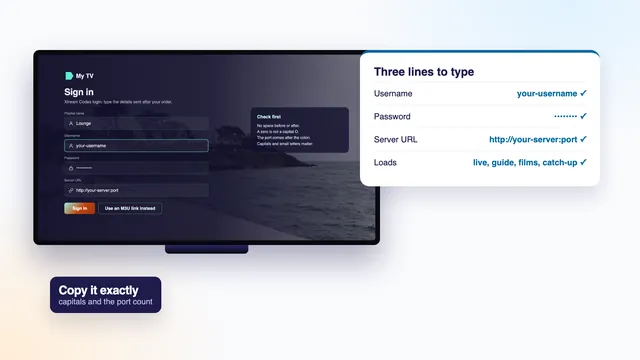
- Open the player’s Xtream Codes form and move to the first field. Press select and the on-screen keyboard appears; most have a key, often marked ?123, for the colon, the slash and the digits.
- Type the server URL as the message shows it, http:// and port included, in the shape http://your-server:port. Check it before moving on, because it is the line most often mistyped.
- Username and password come next. Many keyboards turn the password into dots; if an eye icon is there, use it to read back what you typed.
- Keep voice typing for searches. It guesses at words, and a login is not made of words.
Typing from your phone
Where it is available, the Google TV app on an Android phone or an iPhone includes a remote with a keyboard button. With the phone and the TV on the same Wi-Fi and paired, select a field on the TV, tap the keyboard icon and type on the phone; the text lands on the television. Some sets and some countries do not offer it, and a few makers put a similar keyboard in their own remote app instead.
A real keyboard
Most boxes accept a USB keyboard, or a Bluetooth one paired from the remotes and accessories menu. It turns five minutes of pressing into thirty seconds, and it helps with searches later. If the player then refuses the login, compare each line character by character with your message, or see the guide to IPTV Xtream Codes for what each line should look like.
Resolution and frame-rate matching
Each maker names its display menus in its own way, so look for the ideas rather than the exact words. They usually sit under Settings, in a section called Display, Display and sound, Picture or Advanced display settings.
Output resolution
On a box, set the output to the television’s own resolution, 4K for a 4K set and 1080p for a Full HD one, or leave it on Auto when the box reads the TV correctly. A box sending 1080p to a 4K panel discards detail before the TV ever sees it. On a television with Android TV built in there is nothing to set: the panel is the output.
Frame-rate matching
Television in Ireland and the UK is made at 25 or 50 frames a second, and many films at 24. A box left at 60 Hz has to repeat some frames unevenly to fit, which shows as a faint judder when the camera pans along a pitch or a racecourse. Frame-rate matching lets the box switch the TV to the programme’s own rate as it starts.
Look for a name such as match content frame rate or auto frame rate. Google TV devices often give three choices: switch only when it can be done seamlessly, always, or never. Always gives the smoothest sport, at the cost of a second or two of black screen as a channel opens. Some players, TiviMate and Kodi among them, have a frame-rate option of their own that only works when the system allows switching.
Dynamic range and the TV’s own settings
Some boxes also offer to match dynamic range, so that HDR comes on only for programmes made in HDR; leave it on if offered. HDR, like Dolby Atmos sound, shows up only on programmes that carry it and on TVs that support it. On the television itself, motion smoothing is a matter of taste: some like it for sport, and most switch it off for films.
| The idea | Names you may meet | What to choose |
|---|---|---|
| Output resolution | Resolution, Screen resolution, Display mode | The TV’s native resolution, or Auto |
| Frame-rate matching | Match content frame rate, Auto frame rate | On, or Always when smooth sport matters most |
| Dynamic range | Match content dynamic range, HDR mode | Match the content, so HDR follows the source |
| The TV’s HDMI input mode | Enhanced format, UHD colour, Deep colour | On, for the socket the box is plugged into |
HEVC and 4K
HEVC, also called H.265, is the compression format that lets a 4K picture cross a home line at about 25 Mb/s. A device can unpack it in two ways: with a dedicated chip (hardware) or with its main processor (software). Only the chip keeps 4K smooth; on a TV box, software decoding usually means dropped frames, a halting picture or sound with no image.
Recent certified boxes and most 4K televisions decode HEVC in hardware, and the specification sheet says so. Inside a player, look for a decoder option and pick the hardware one; in Kodi and VLC it is labelled hardware acceleration or something close.
The rest of the chain must keep pace. A box needs an HDMI 2.0 socket or newer, a cable rated for 4K, and a TV input that accepts 4K at 60 Hz; on some sets only certain sockets do, and the enhanced mode has to be switched on for that socket. Finally, 4K needs a 4K source. Plenty of live channels leave the studio in HD or Full HD, and a box cannot invent pixels that were never sent to it.
Ethernet or Wi-Fi
A cable from the router is the steadiest link a television can have. Even the 100 Mb/s Ethernet socket found on many boxes carries four times what a 4K stream needs, and it does not sag when someone upstairs starts a video call.
Where running a cable is impractical, use 5 GHz Wi-Fi, with the box in clear view of the router or of a mesh point. The older 2.4 GHz band travels through more walls, yet neighbours, baby monitors and microwave ovens share it, and it is the band most likely to struggle on a busy evening. A box tucked behind the television or shut in a cabinet loses signal as well; a short HDMI extension lead can bring it out into the open.
Run a speed check from an app on the TV or box itself, not on your phone, and do it at the busy end of the day, somewhere between 19:00 and 23:00. HD wants roughly 5 Mb/s that holds steady, Full HD about 10, and every 4K screen about 25. Full fibre manages that easily; on fibre to the cabinet, fixed wireless or a 4G or 5G home router, the evening reading is the one to trust. The plain-words guide to what IPTV is explains why the line weighs so much.
Storage, cache and keeping the box quick
Many Android TV devices come with 8 GB of storage, and the system itself takes a good share of it. Players keep guide data, posters and thumbnails as they go, and once free space runs low, menus slow down and apps close by themselves.
- Clear a player’s cache from Settings, then Apps, then the player’s name. Choose Clear cache, not Clear data or Clear storage: those also wipe your login, and you would have to type it again.
- Uninstall the apps you never open, especially those that came with the box and can be removed.
- Turn off automatic video previews on the home screen if your device plays them; they use memory and data.
- Restart the box once a week or so. If it has no restart option, unplug it for ten seconds.
- Keep each player current from the apps-and-updates page of Google Play, so that its fixes reach you.
If a box still crawls after all that, it may simply be too old for current players. That is a hardware question rather than a plan question, so ask the team before buying another. The checks to run when IPTV is not working take the other causes in order.
Setting up IPTV for Android TV costs nothing beyond the plan. Each of the four Home plans opens the same 40,000+ live channels and 120,000-title library, with the guide and catch-up; only the months and the screens change. Home 12 is €49 for a year, roughly 13 cent a day, and Home 12 Duo at €79 covers two TVs playing together. See what an IPTV plan from us includes, compare the four Home plans, or read the plans page with prices per month and end dates.
For the other screens in the house, the setup page goes through each kind in turn, and the contact page reaches the team at any hour, before or after you order.
Frequently asked questions
Is Google TV the same as Android TV?
Underneath, yes. Google TV is a newer home screen laid over Android TV, with the same Google Play store and the same players. Everything in this guide applies to both.
My TV already runs Android TV. Do I need a box?
Usually not. Install the player on the TV itself and type the login. A box only earns its place when the TV’s processor is slow, its Wi-Fi is weak or it no longer receives app updates.
Which player should I install first?
IPTV Smarters Pro if you want the same app on the TV and the phones, TiviMate if a large guide grid matters most. Both take the Xtream Codes login from your message, and you can install both and keep the one you prefer.
Why does football look jerky on my box?
Usually because the box sends 60 Hz while the match is made at 50 frames a second. Turn on frame-rate matching in the display settings. A weak Wi-Fi signal causes a different kind of stutter, with pauses rather than judder, so check the line too.
Will my Android box play 4K?
Only when four things line up: the source was made in 4K, the box decodes HEVC in hardware, it reaches a 4K input through HDMI 2.0 or newer, and that screen gets about 25 Mb/s steadily. Miss one and the picture drops to HD or stutters.
Can I install a player that is not in Google Play?
Android allows it, but we advise against loose installer files from forums, which can carry malware and never update. Stay with store versions; if the one you want is missing, message us and we will suggest one that is in your store.
Does a Fire TV stick work the same way?
Partly. Fire TV is built on Android but keeps to Amazon’s own store, which does not carry Smarters Pro; Downloader fetches it instead, from the address given in your login message. Those steps are in the Smarters Pro guide.